


WorkflowMax does not include an inventory or stock management module — and is not generally suited for business that have Inventory as a high priority.
If stock control, reorder points, or valuation are critical to your business, WorkflowMax is unlikely to be the right tool.
However, for businesses that primarily do custom project work with tracking of time and materials, and only want to keep an eye on a small number of commonly used stock items, there is a cheats tip that can work surprisingly well.
This approach won’t replace proper inventory software — but for the right use case, it can fill the gap.
First, an important reality check
WorkflowMax:
- Has no stock module
- Has no automatic stock valuation
- Has no reorder levels or stock alerts
What it does have is a Cost Library, Jobs, and flexible reporting — and those are what this workaround uses.
The concept is simple:
· Stock items are set up in the Cost Library
· Stock coming in is recorded on a dedicated Stock Job
· Stock being used is recorded as normal on client jobs
· A custom report shows the current balance of stock items across all jobs
The slightly odd part?
Stock coming in is recorded as a negative cost.
Yes — it feels wrong at first.
But it works because it allows the normal processes to continue with loading costs onto client jobs as stock is used up.
Step 1: Set up your stock items in the Cost Library
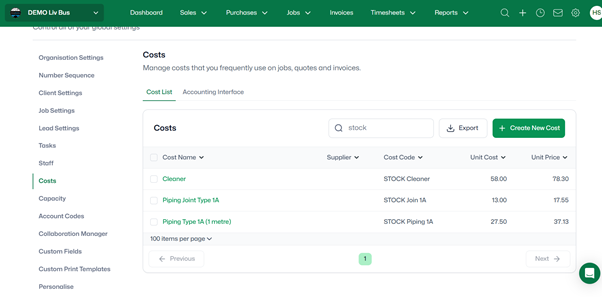
Create each stock item as a normal cost item in the WorkflowMax Cost Library.
There’s nothing special about the setup — it behaves like any other cost item.
Screenshot 1: Stock items listed in the Cost Library
Tip:
Use clear naming so these are easy to filter and report on later. For example all stock items could have a Cost Code prefixed with “STOCK”.
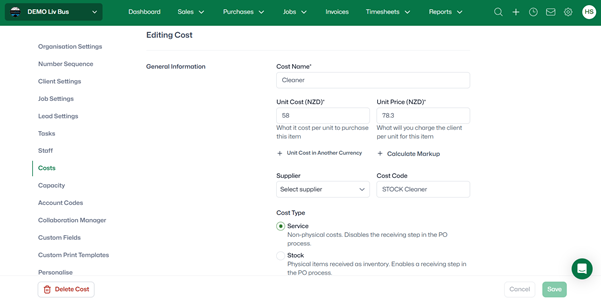
Screenshot 2: Stock item detail/edit screen
A quick note about the “Service” vs “Stock” cost type
When setting up a cost item in the Cost Library, you’ll notice a choice between Service and Stock as the cost type.
This “Stock” option has nothing to do with the stock‑tracking method described in this blog. Choosing Stock here simply enables an extra receipting step when using Purchase Orders, where bills can be receipted separately from the physical arrival of goods — useful in some workflows, but not required for this cheats tip.
For the purposes of this method, the key is that the item exists in the Cost Library — whether it is set as Service or Stock does not change how the stock quantities are tracked using jobs and reports.
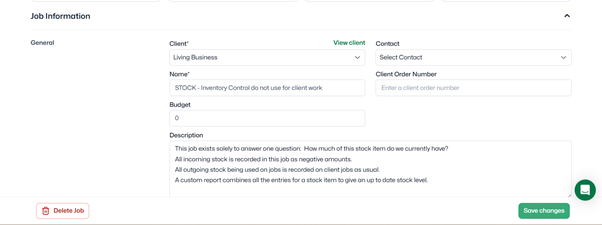
Step 2: Create a dedicated Stock Job
Create one job only, used purely for tracking incoming stock movements.
Best practice:
- Client: your own business
- Job name: something very obvious like
“Stock Control – Do Not Use for Client Work” - Nothing from this job is ever invoiced and you will need to ensure WIP is written off regularly.
Screenshot 3: Inventory Job header/details
Step 3: Record stock coming in (the counter‑intuitive bit)
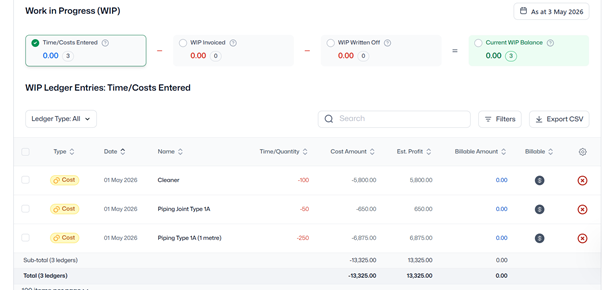
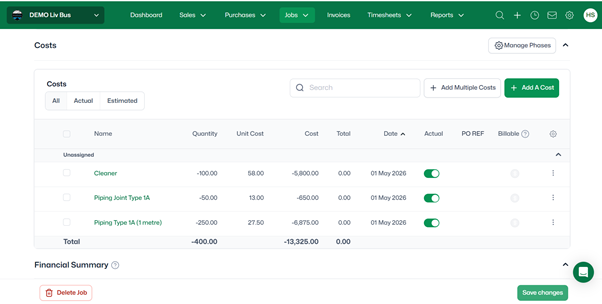
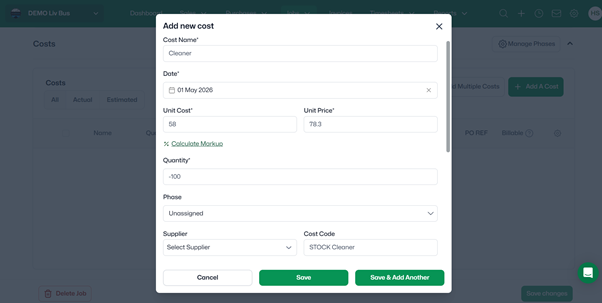
When stock arrives, record it on the Inventory Job as a negative cost quantity.
For example:
- Cleaner Stock received: 100 , Quantity entered -100
Screenshot 4: Negative stock quantities entered on the Inventory Job
Screenshot 5: Cost entry screen showing “‑100” quantity
Yes, this feels backwards.
The mental rule is simple:
Negative = stock coming in
Positive = stock being used
Once you get used to that, the rest flows.
Step 4: Record stock being used on client jobs as normal
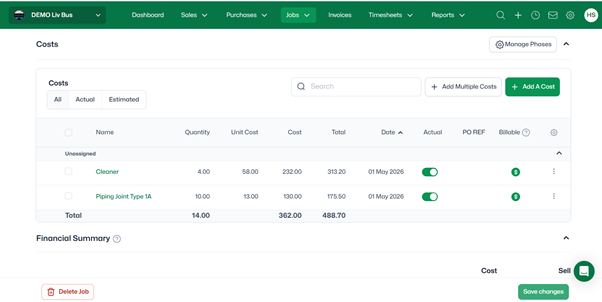
When stock is used on a client job, enter it exactly as you normally would.
No special process.
No negative numbers.
Your team doesn’t need to do anything differently.
Screenshot 6: Client job showing normal positive stock usage
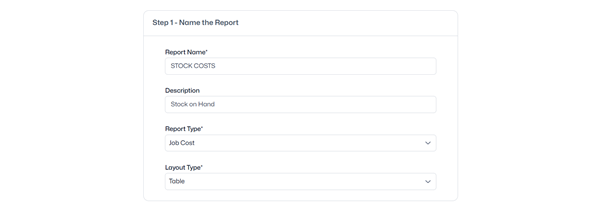
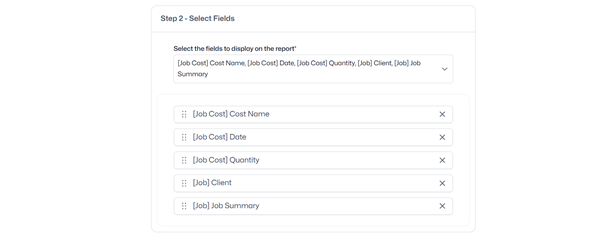
Step 5: Create a custom cost report to show current stock on hand
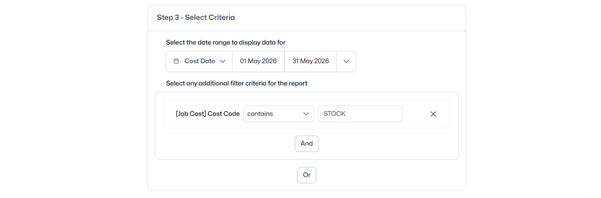
The final piece is a custom Cost Report that Groups by Cost Item, Totals quantities for each Stock Item across all jobs and shows the net balance for each stock item.
Make sure the date range is going to include all stock coming in and out you want counted.
Screenshot 7: Custom cost report setup

Screenshot 8: Report output showing current balances across stock items
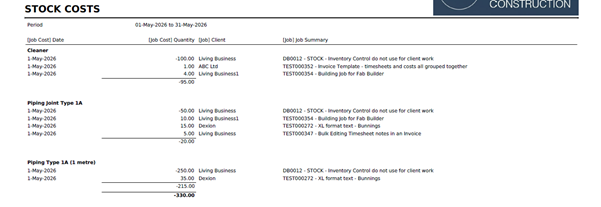
The total quantity shown for each item is your current stock on hand. Just remove the negative!
The Caveats
Bear in mind, if you send POs to suppliers to order and bring in stock, you'll need to explain the negative numbers on the PO to your supplier or keep your POs normal and update the job costs to negative values after processing the PO.
Ensure you write off the WIP from the Stock Job regularly, keep the stock items as non Billable on the Stock Job, and exclude the Stock Job from Estimated Billings.
Also, just a reminder that Cost Items in WFM do not generally flow through to Xero in a way that affects stock values on your Xero Balance Sheet. But if you are using Tracked Inventory in Xero, alongside the WFM – Xero Integration then it is possible to match them up. But you would never invoice the Stock Job from WFM – only write off the WIP every now and then.
AND – with the new WIP manager (new WIP Tab on each job) available in WFM Advanced Plan you can see and choose which WIP specifically you want to write off, along with some other fantastic features.